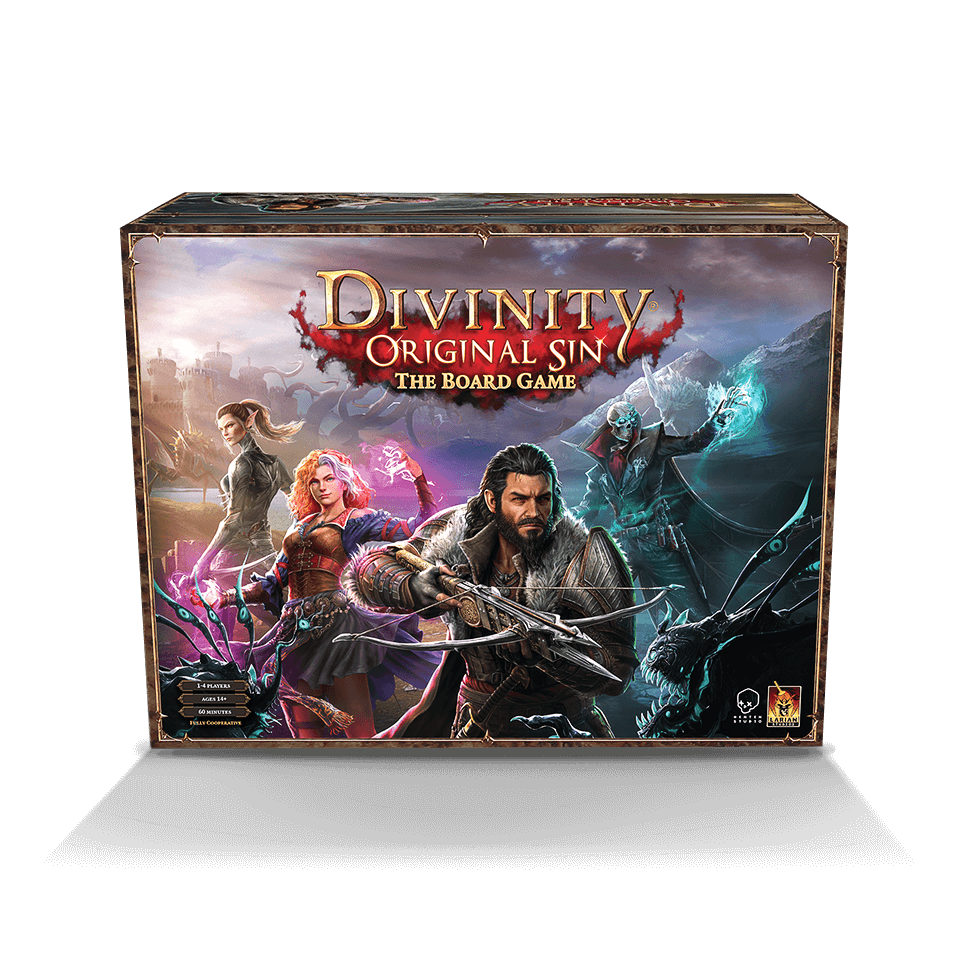
DIVINITY: ORIGINAL SIN - THE BOARDGAME
The battle for Divinity has begun. Choose wisely and trust sparingly; darkness lurks within every heart.
BALDUR'S GATE 3 IS OUT NOW
It's time to gather your party and venture forth!
 Merch
Merch Larian merch store
It’s here where you can pre-order the Board Game, buy the Graphic Novel, and even the physical Switch version of Divinity: Original Sin 2 which is practically sold out everywhere!
Visit the storeDivinity Original Sin The Boardgame
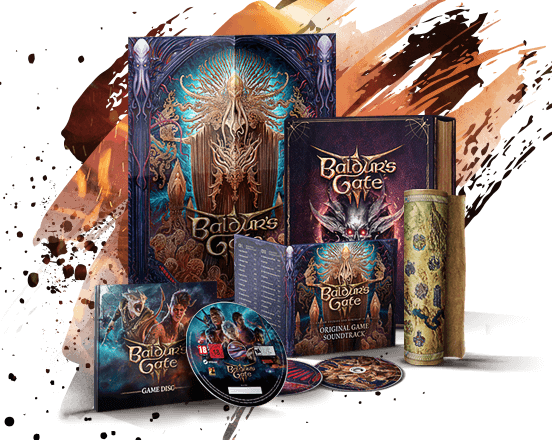
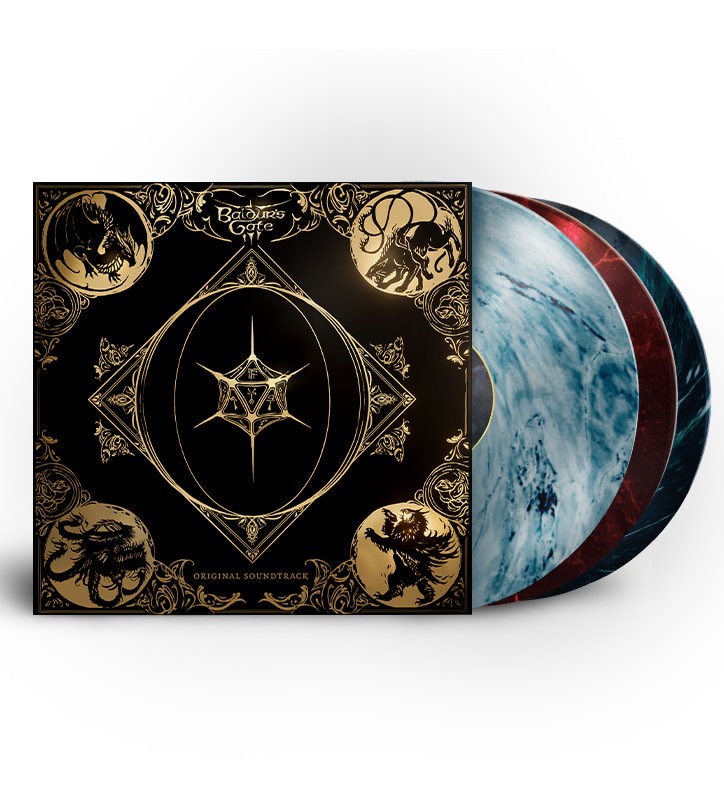
Baldur’s Gate 3 Soundtrack – Limited Edition Box Set
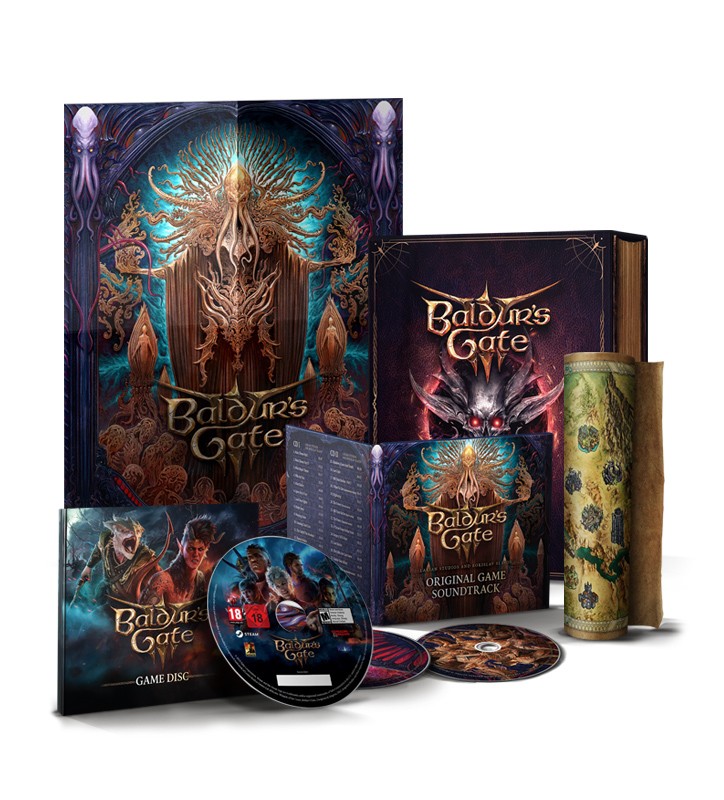
Baldur’s Gate 3 - Deluxe Edition PC
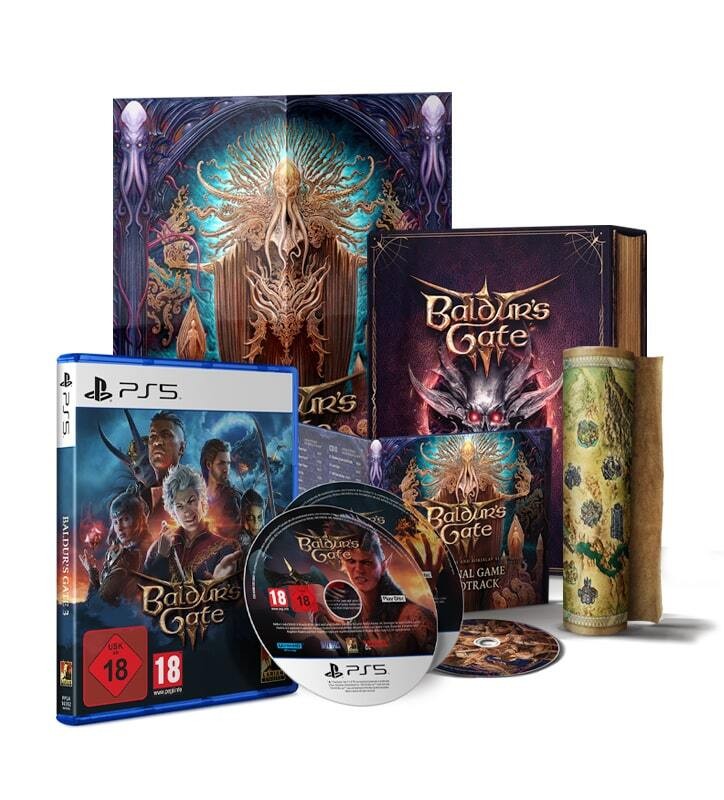
Baldur’s Gate 3 - Deluxe Edition PS5
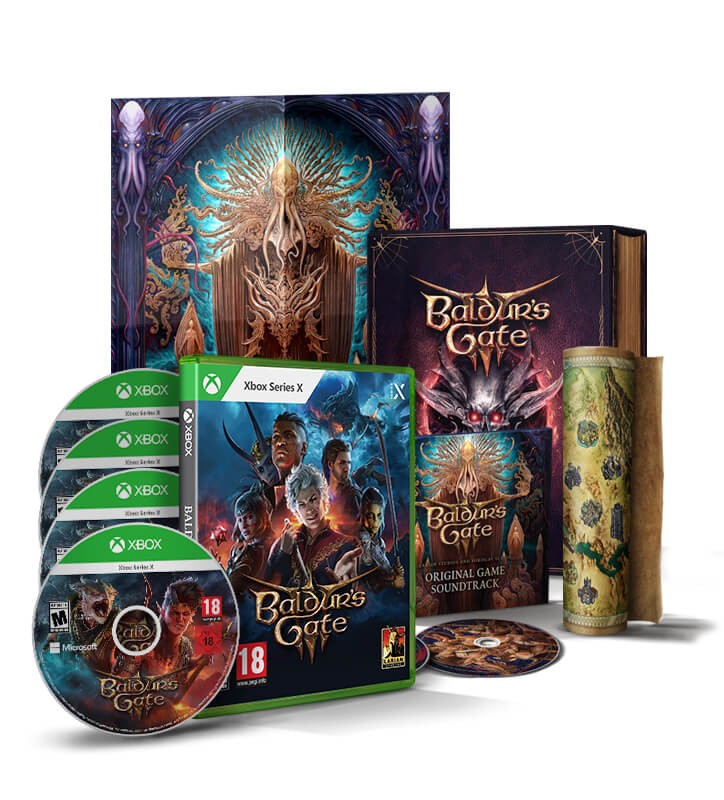
Baldur’s Gate 3 - Deluxe Edition Xbox
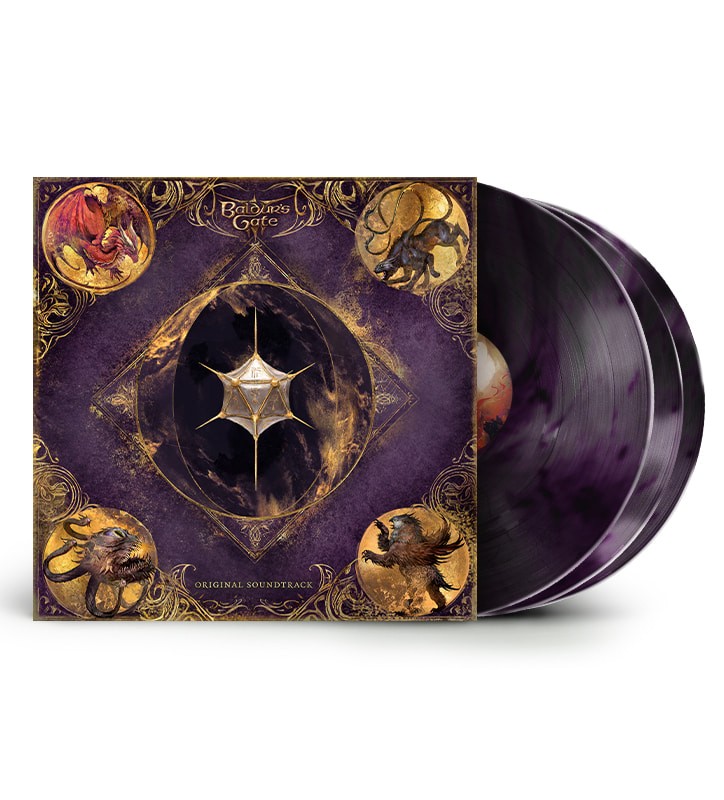
Baldur’s Gate 3 Vinyl
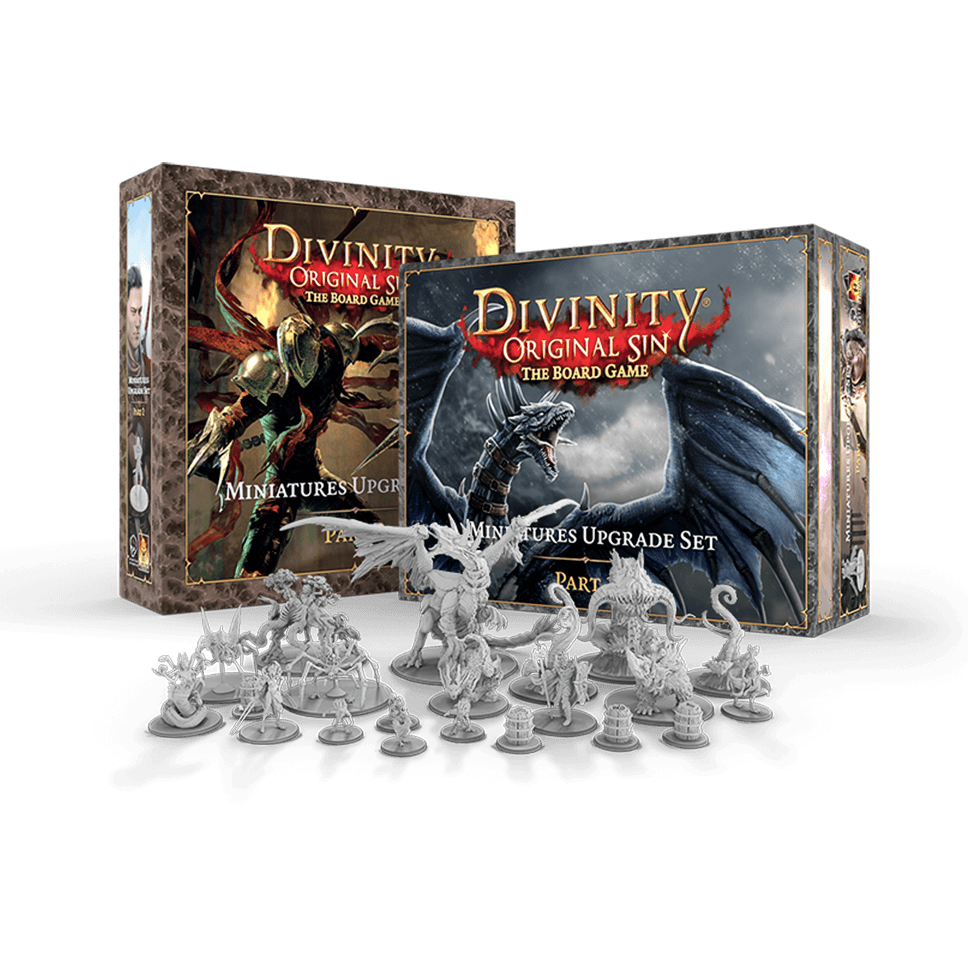
Miniatures Upgrade Set
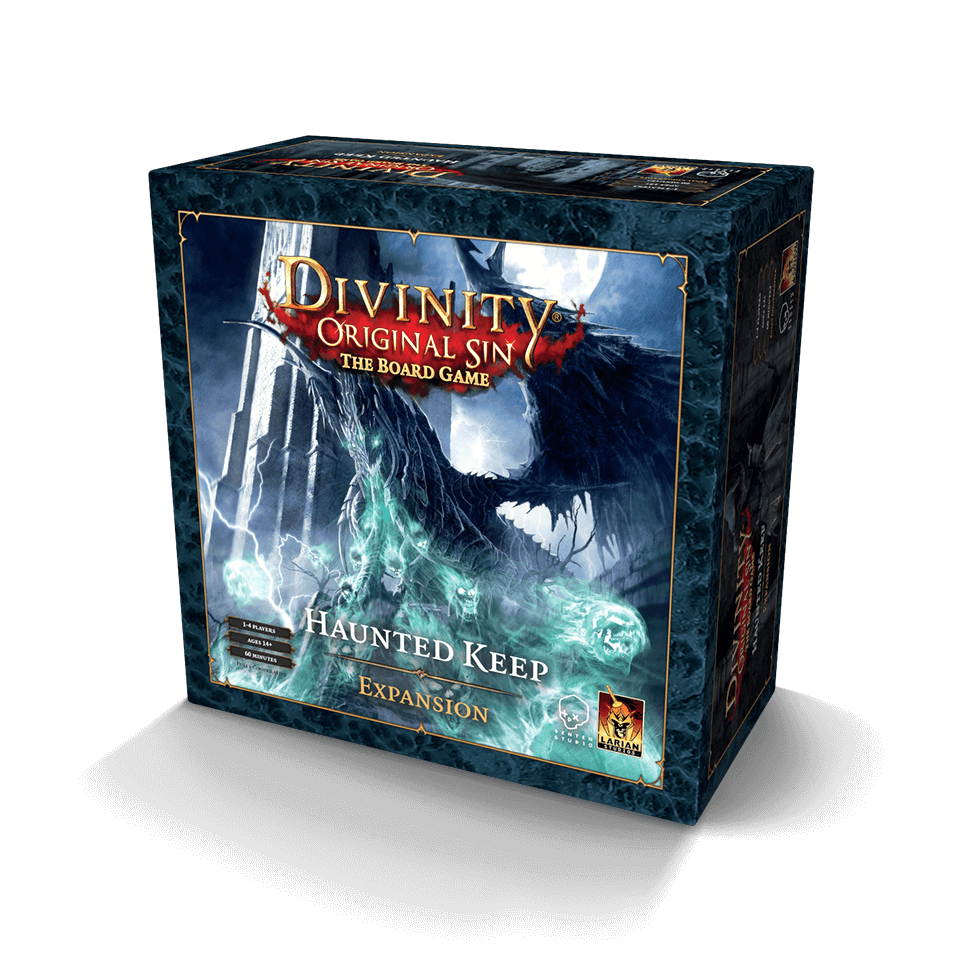
Haunted Keep Expansion Pack
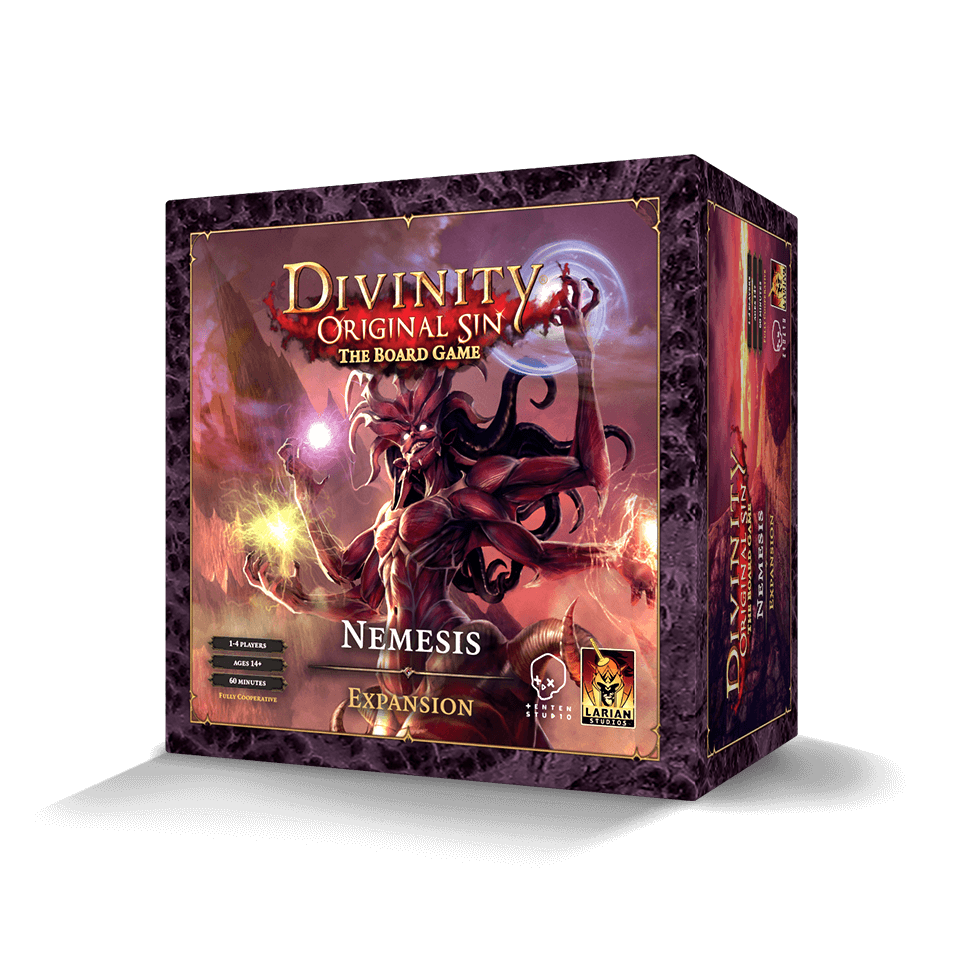
Nemesis Expansion Pack
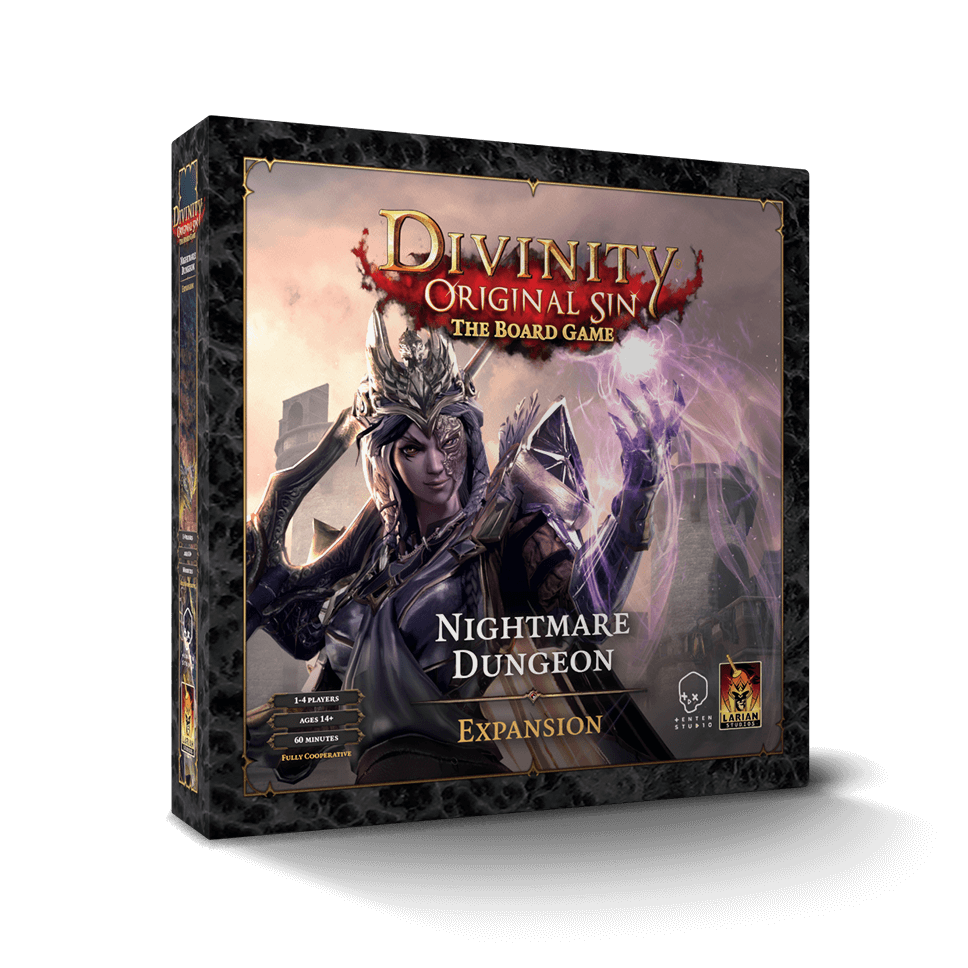
Nightmare Dungeon Expansion Pack
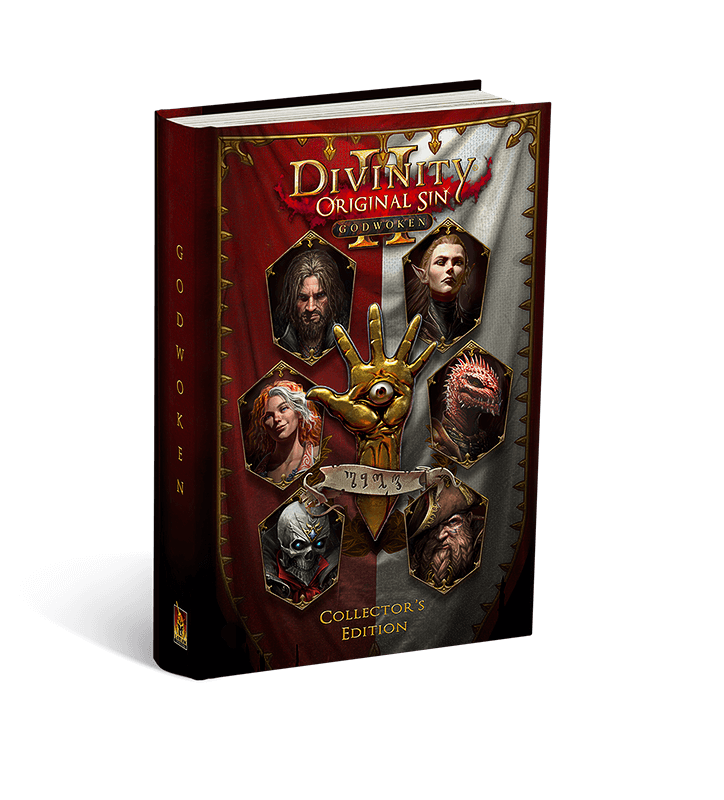
Godwoken - Graphic Novel - Collector's Edition
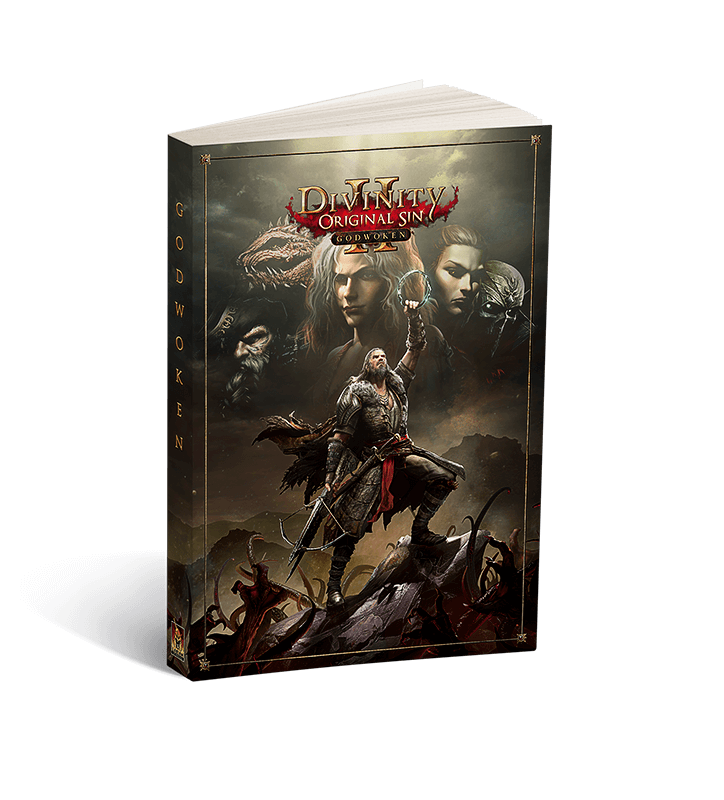
Godwoken - Graphic Novel
Larianite
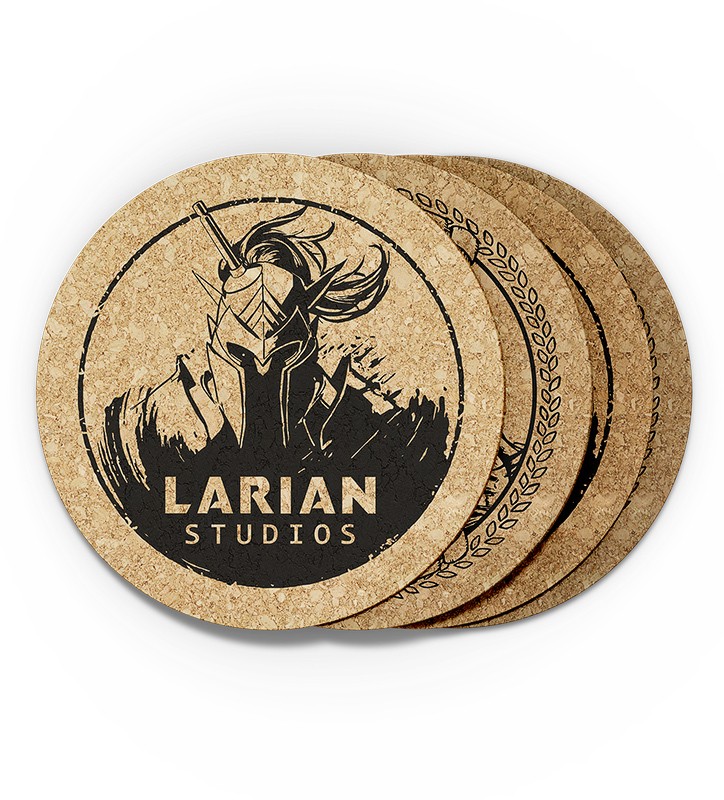
Larian Beer Coaster (Pack of 4)
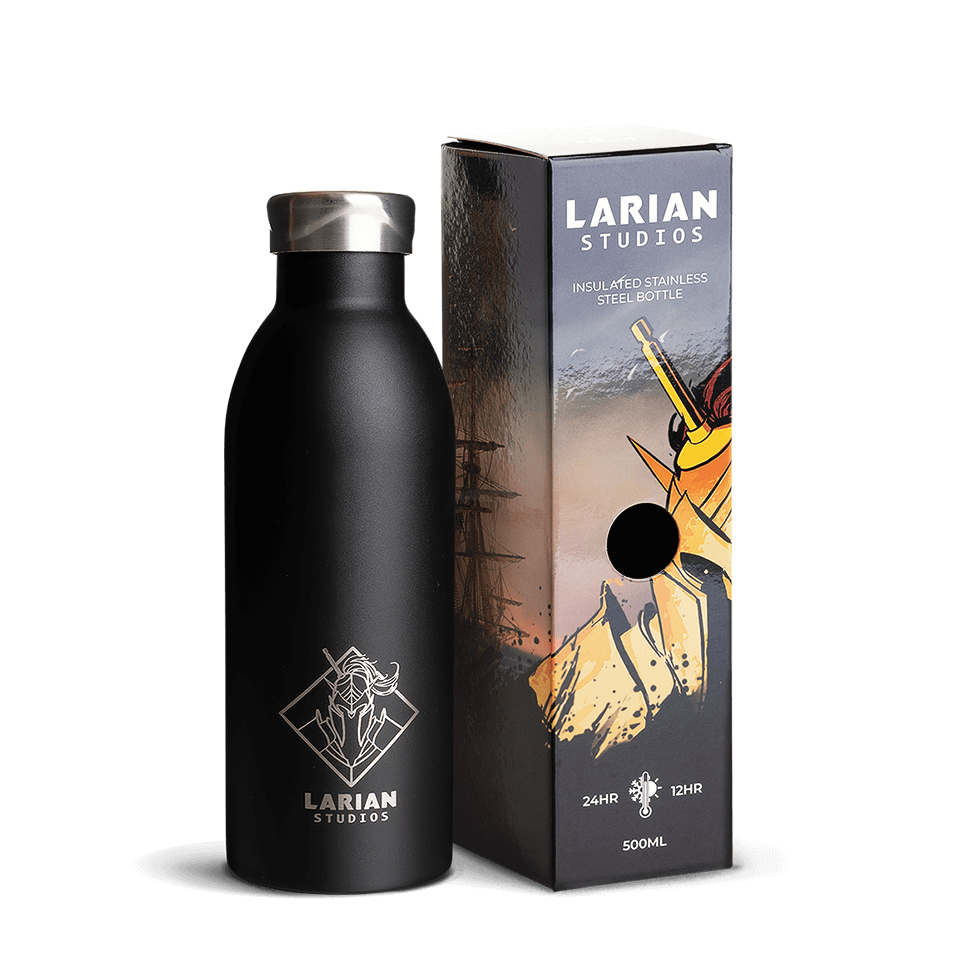
Larian Insulated Bottle
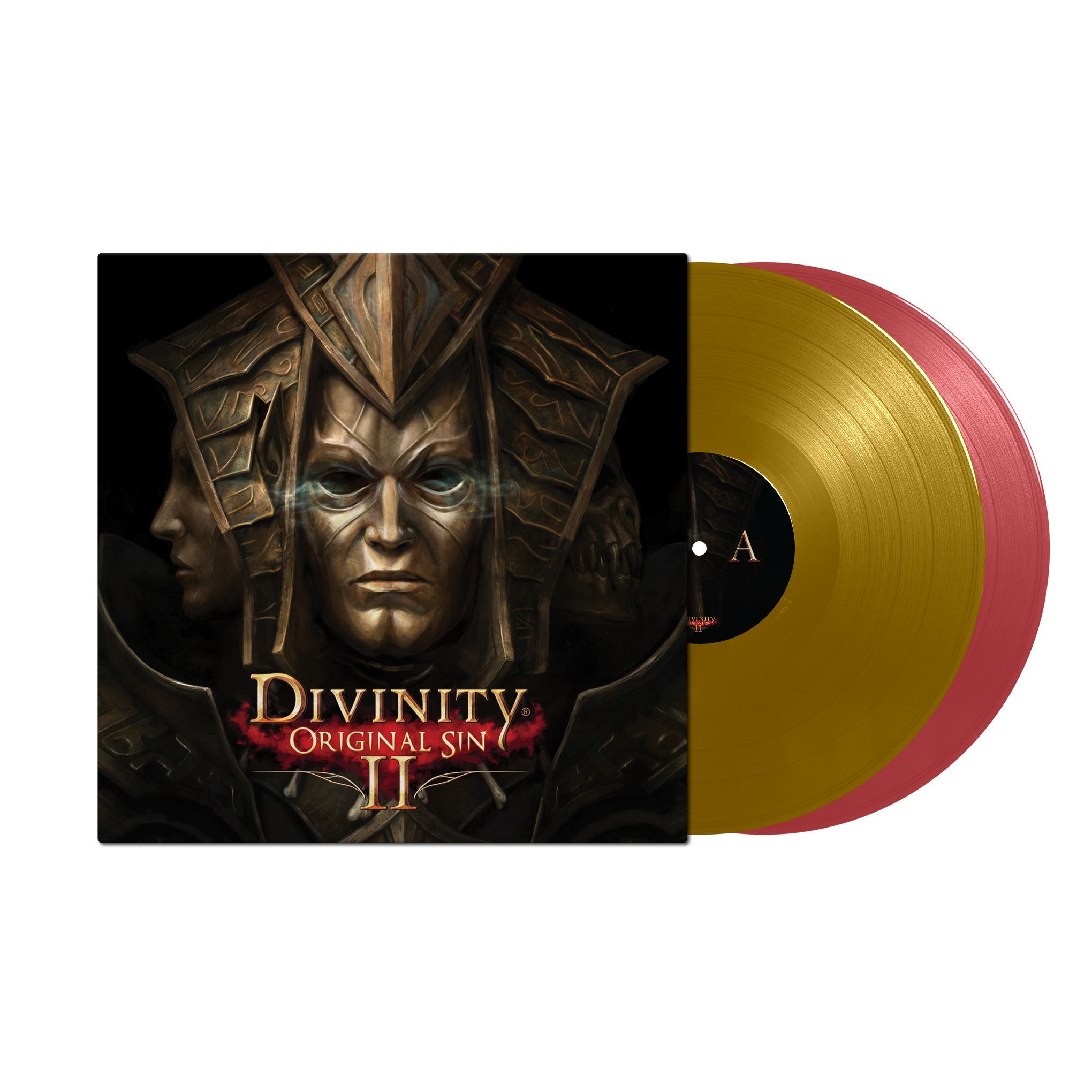
Divinity: Original Sin 2 - Golden Vinyl
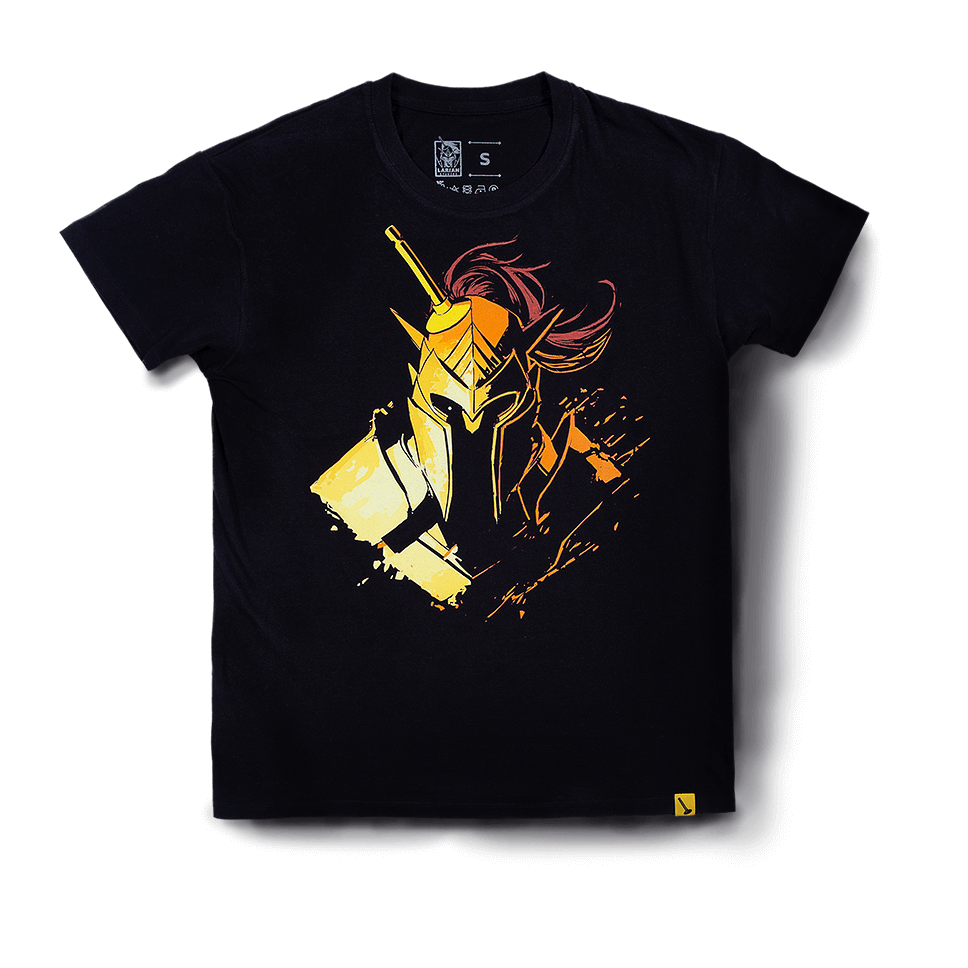
Forward, Quercus!
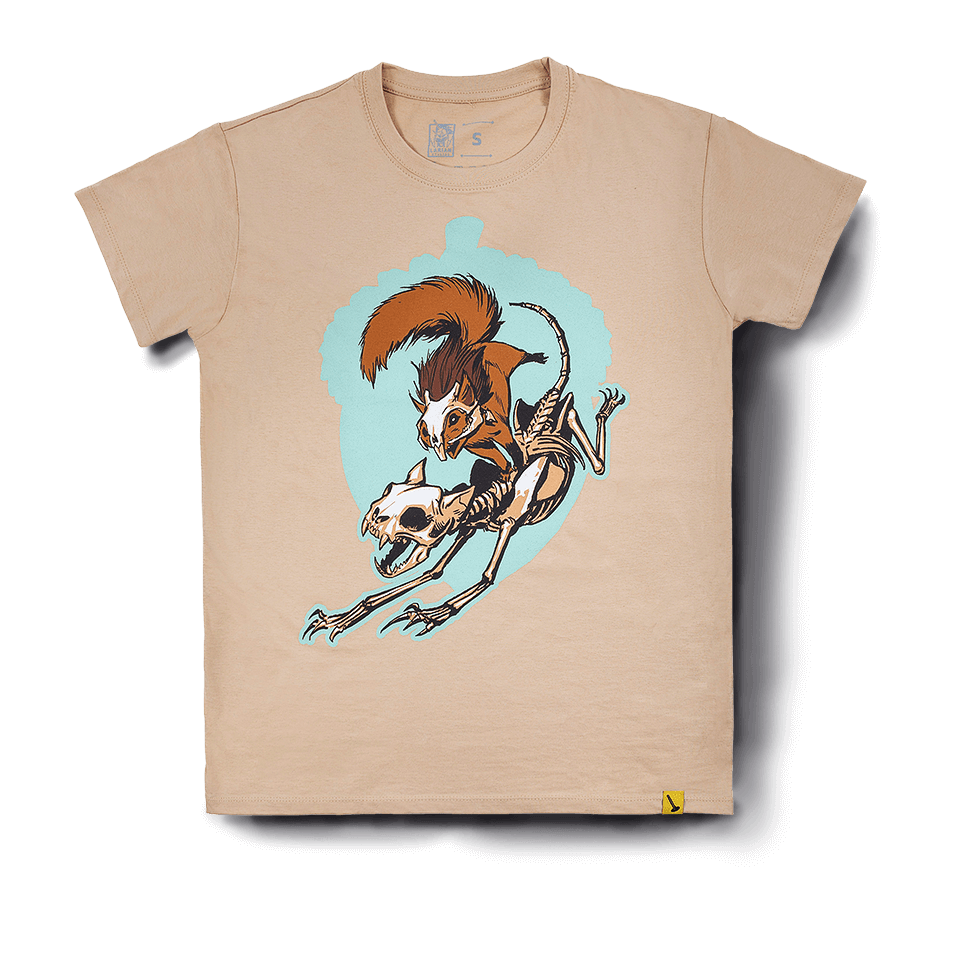
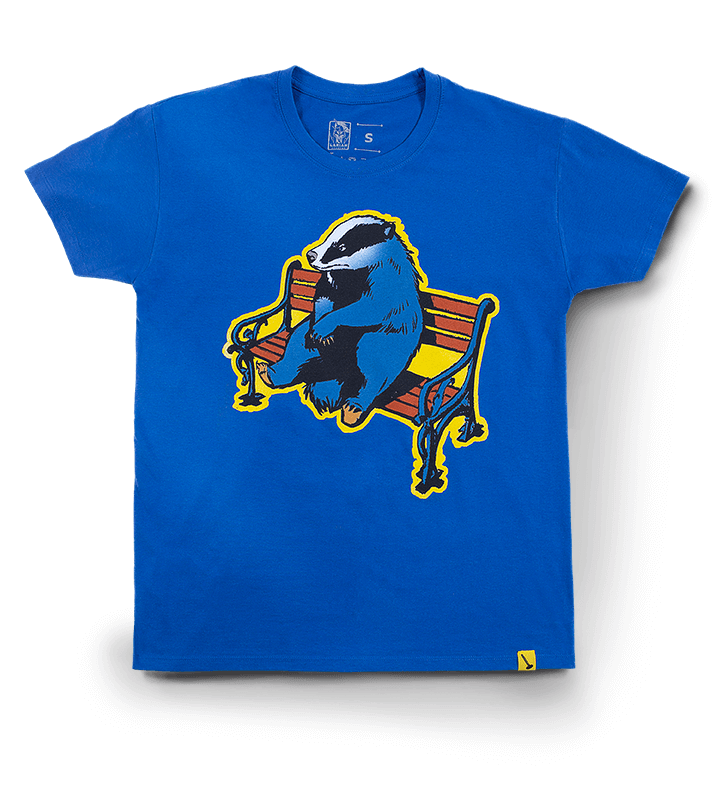
T-Shirt: Badger
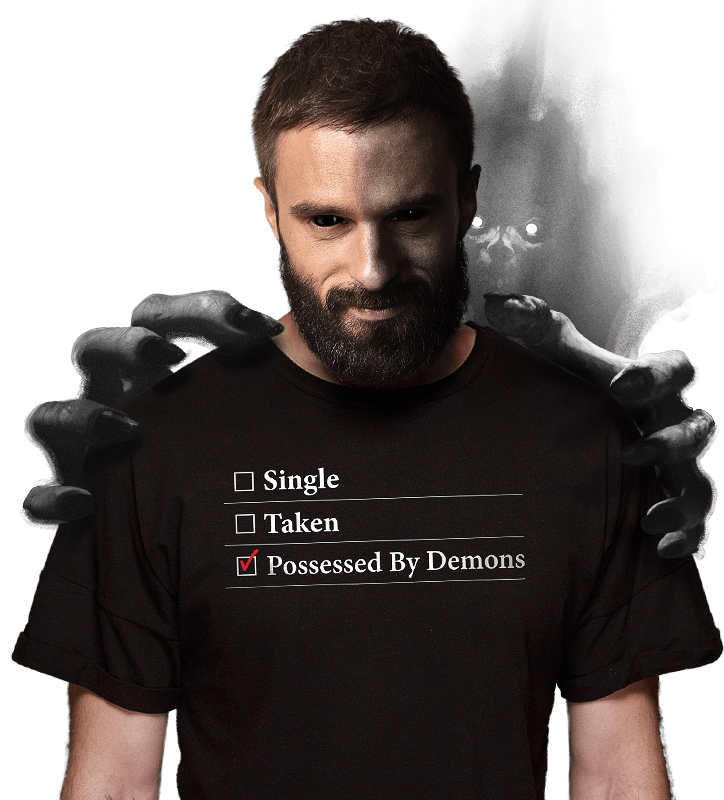
Possessed By Demons
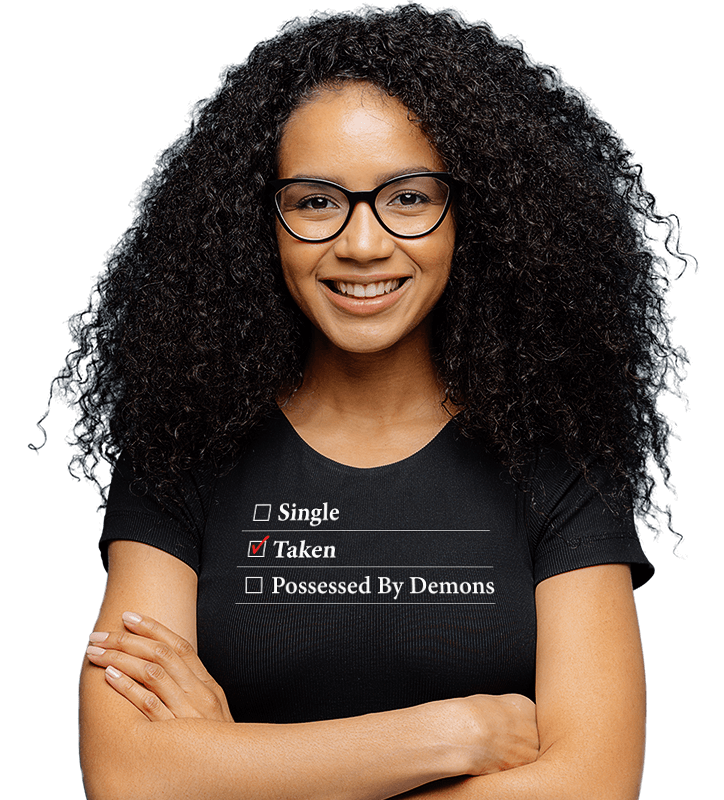
Demons, Begone - I'm Taken!
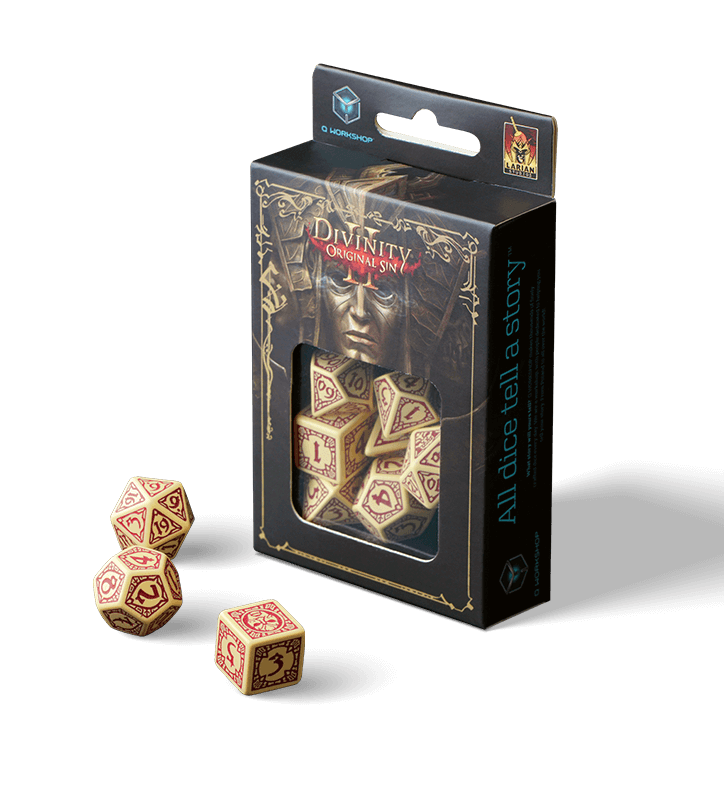
Divinity Original Sin II - Dice Set
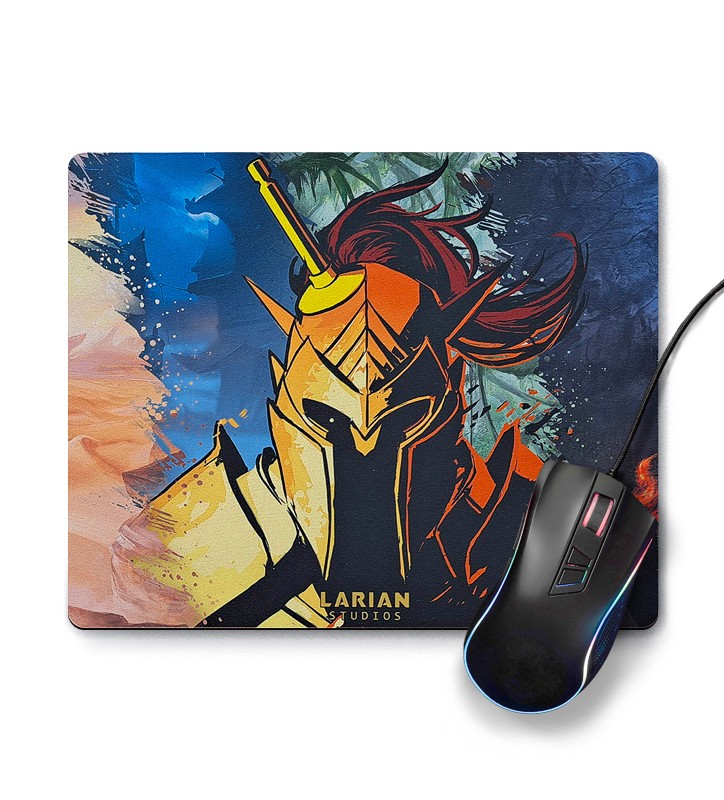
Larian Mouse Pad (Warrior)
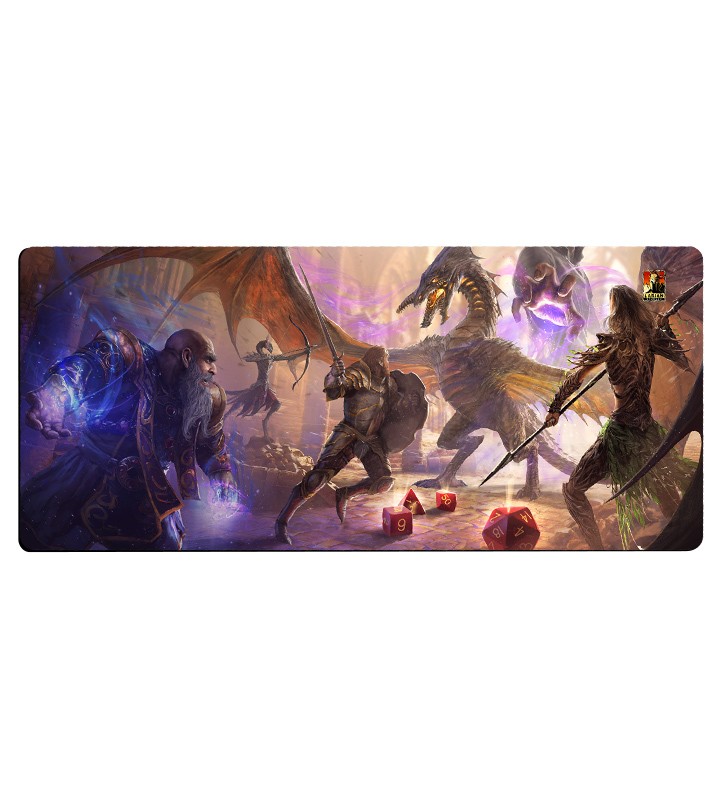
Larian Desk Pad (DOS2 Game Master Mode)
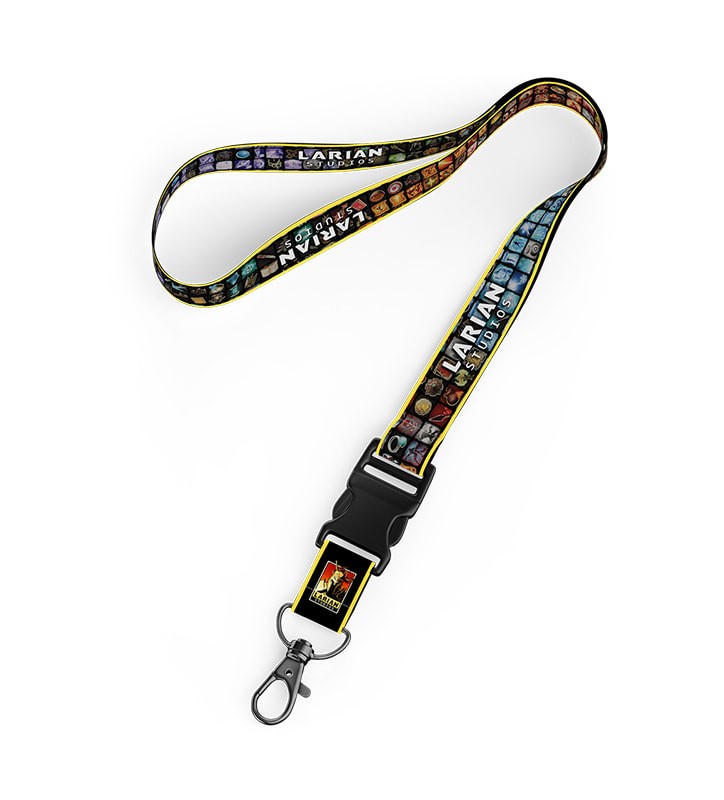
Divinity Original Sin 2 - Spells Lanyard
A PASSION DRIVEN BY SUCCESS
WE WORK TOGETHER AND EVERY VOICE COUNTS
In 1996, in a small office in Ghent, Belgium, Larian Studios was born. Since then, our passion to create a world class video games has driven the Divinity series - six games that straddle multiple genres and defy expectations. Our first crowdfunded success, Divinity: Original Sin, won over 150 awards and nominations, and the recently-released sequel Divinity: Original Sin 2 launched with a 93 Metacritic rating, as well as over 160 awards (Including the Bafta for Best Multiplayer Game) and counting! Thanks to the success of these two games, our family has grown to over 300 people around the world, working in our Ghent, Quebec, Dublin, Kuala Lumpur, Guildford and Barcelona studios. Our latest title Baldur's Gate 3 released in 2023 to critical acclaim and is now listed among Metacritic's Must-Play games.
Open positions